

The Ultimate Guide to Fixing HP Printer Offline Issues: Troubleshooting Tips and Solutions
Is your HP printer constantly showing offline status? Frustrating, right? But don’t worry, we’ve got you covered! In this comprehensive guide, we will walk you through the troubleshooting tips and solutions to fix the HP Printer Offline issues once and for all.
Having a printer go offline can hinder your workflow and lead to unnecessary delays. Understanding the root cause of this problem is the first step towards resolving it. Whether it’s a connectivity issue, outdated drivers, or misconfigured settings, we’ll cover all possible factors that could be causing your HP printer to go offline and how to run hp printer setup.
Our step-by-step guide will provide you with easy-to-follow instructions to troubleshoot the issue on your own. From checking the connection cables to updating printer drivers, we will outline the most effective solutions to get your HP printer back online.
Don’t let printer offline issues slow you down. Follow our ultimate guide to fix your HP printer and regain your productivity in no time!
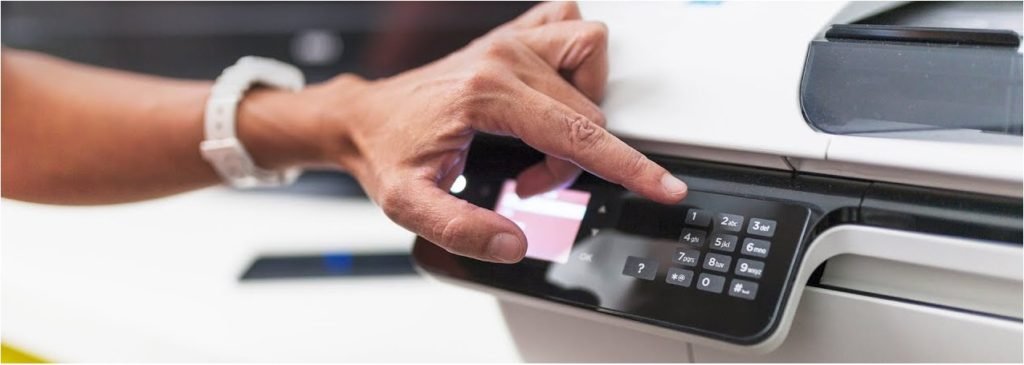
Understanding the HP printer offline issue
Having an HP printer go offline can be a frustrating experience, and it’s a common problem that many users face. When your printer is offline, it means that it is not communicating with your computer or network, and you won’t be able to print documents or send print jobs to the printer. This can lead to delays in your workflow and impact your productivity.
There are several reasons why an HP printer might go offline, including connectivity issues, outdated drivers, or misconfigured settings. Understanding the root cause of the problem is the first step towards resolving it. In this guide, we’ll explore the common causes of HP printer offline issues and provide you with step-by-step troubleshooting solutions to get your printer back online.
By the end of this article, you’ll have a better understanding of why your HP printer is going offline and the most effective ways to fix the problem. Whether you’re using a Windows or Mac operating system, we’ll cover the necessary steps to troubleshoot and resolve the issue, ensuring that your printer is always ready to handle your printing needs.
Common causes of HP printer offline issues
One of the most common reasons why an HP printer goes offline is due to connectivity issues. This can happen when the printer is not properly connected to your computer or network, or when there are problems with the cables or network settings.
Another common cause of HP printer offline issues is outdated or incompatible printer drivers. Printer drivers are the software that allows your computer to communicate with the printer, and if they are not up-to-date or compatible with your operating system, it can lead to the printer going offline.
Misconfigured printer settings can also be a contributing factor to the offline issue. This can include settings related to the printer’s network connection, default paper size, or other preferences that may have been changed or reset inadvertently.
In some cases, the printer’s hardware may also be the culprit. If the printer is not receiving enough power, has a hardware malfunction, or is experiencing a firmware issue, it can cause the printer to go offline and become unresponsive.
Understanding these common causes of HP printer offline issues is crucial in determining the appropriate troubleshooting steps to resolve the problem. By addressing the root cause, you can ensure that your HP printer remains online and ready to handle your printing needs.
Troubleshooting steps for fixing HP printer offline issues
When your HP printer goes offline, it’s important to follow a systematic troubleshooting approach to identify and resolve the underlying issue. In this section, we’ll guide you through the most effective steps to get your printer back online.
Checking printer connections and settings
The first step in troubleshooting an HP printer offline issue is to check the physical connections and settings of the printer. Ensure that the printer is properly connected to your computer or network using the appropriate cables. Verify that the cables are not damaged and are securely plugged into both the printer and the computer or network device.
Next, check the printer’s settings to ensure that it is configured correctly. Access the printer’s control panel or the software installed on your computer and review the network settings, default paper size, and any other relevant settings. Make sure that the printer is set to the correct network connection and that the settings match the configuration of your computer or network.
If you’re using a wireless connection, check the strength of the Wi-Fi signal and ensure that the printer is within range of the wireless network. You can also try reconnecting the printer to the network to see if that resolves the issue.
Updating printer drivers and firmware
Outdated or incompatible printer drivers can often be the root cause of HP printer offline issues. Ensure that you have the latest printer drivers installed on your computer by visiting the HP website or using the HP Smart app to download and install the latest driver version.
In addition to updating the printer drivers, it’s also important to check for any available firmware updates for your HP printer. Printer firmware is the software that runs on the printer itself, and keeping it up-to-date can help resolve various issues, including the printer going offline.
To check for and install firmware updates, consult the HP support website or use the HP Smart app. Follow the instructions provided to download and install the latest firmware version for your specific printer model.
Restarting print spooler service
The print spooler service is a critical component in the printing process, responsible for managing and handling print jobs. If this service is not functioning correctly, it can lead to the printer going offline.
To restart the print spooler service, follow these steps:
- Open the Run dialog box by pressing the Windows key + R.
- Type “services.msc” and press Enter to open the Services window.
- Locate the “Print Spooler” service, right-click on it, and select “Restart”.
- Wait for the service to restart, and then try printing again to see if the issue has been resolved.
If restarting the print spooler service doesn’t fix the problem, you can also try stopping and then restarting the service to see if that helps.
Resetting the printer network settings
If the previous troubleshooting steps haven’t resolved & still the question remains How do I fix HP printer offline issue, it’s worth trying to reset the printer’s network settings. This can help address any configuration issues that may be causing the connectivity problem.
To reset the printer’s network settings, follow these steps:
- Access the printer’s control panel and locate the network settings menu.
- Look for an option to reset or restore the network settings to the default configuration.
- Follow the on-screen instructions to complete the network settings reset process.
After resetting the network settings, try reconnecting the printer to your computer or network and see if the offline issue has been resolved.
Resolving printer offline issues on Windows operating system
If you’re using a Windows operating system and your HP printer is going offline, there are a few additional troubleshooting steps you can try:
- Check the printer’s status in the Windows Devices and Printers menu. If the printer is shown as offline, right-click on it and select “See what’s printing” to access the print queue.
- In the print queue, try to resume or restart any pending print jobs. This can sometimes resolve the offline issue.
- If the printer is still shown as offline, try removing and then re-adding the printer in the Devices and Printers menu. This can help refresh the connection and resolve the issue.
- If the problem persists, you can also try running the Windows printer troubleshooter, which can help identify and fix any underlying issues with the printer.
By following these Windows-specific troubleshooting steps, you can often resolve HP printer offline issues on your Windows-based computer.
Resolving printer offline issues on Mac operating system
If you’re using a Mac and your HP printer is going offline, the question comes to your mind is How do I fix hp printer offline, so, the troubleshooting process may differ slightly:
- Check the printer’s connection status in the System Preferences > Printers & Scanners menu. If the printer is shown as offline, try to reconnect it by clicking the “+” button to add the printer again.
- Ensure that the printer is properly configured in the Printers & Scanners settings, including the correct network settings or USB connection.
- Try restarting the printer and your Mac to see if that resolves the offline issue.
- If the problem persists, you can try removing the printer from the Printers & Scanners list and then re-adding it. This can help refresh the connection and get the printer back online.
- In some cases, you may need to update the printer driver or firmware on your Mac to ensure compatibility and resolve the offline issue.
By following these Mac-specific troubleshooting steps, you can often get your HP printer back online and ready to handle your printing needs on your Apple device.
Conclusion and additional resources for further assistance
In this comprehensive guide, we’ve covered the most common causes of HP printer offline issues and provided you with step-by-step troubleshooting solutions to get your printer back online. From checking the physical connections and settings to updating drivers and firmware, we’ve outlined the most effective steps to resolve the problem.
If you’ve followed the troubleshooting steps outlined in this guide and are still experiencing issues with your HP printer going offline, there are additional resources available to help you:
- Visit the HP support website (www.hp.com/support) and search for your specific printer model. You’ll find a wealth of information, including user guides, troubleshooting articles, and contact options for HP customer support.
- Utilize the HP Smart app, which can help you diagnose and resolve printer issues, as well as access important information and updates for your HP printer.
- Reach out to HP customer support directly, either through the website, email, or phone, and their team of experts can provide personalized assistance to help you resolve the offline issue.
Don’t let the qusetion How do I fix HP printer offline issues slow down your productivity. By following the troubleshooting steps outlined in this guide and leveraging the additional resources available, you can get your HP printer back online and ready to handle all your printing needs.
If you still need help, you may contact our hp printer support