

Why is My Printer Offline? How to Make Printer Online
If you ever wonder why is your printer offline and how to make printer online in Windows 10 or 8.1 or Mac computer. Most of the time on Windows 10 or Mac computer, there could be several reasons for this. In this guide you will get to know the possible reasons why a printer can go offline.
Usually, printers may go offline due to network or USB cable connectivity issue, paper jam, out of paper, any other printer hardware faults and driver corruption. Mostly it will come back to online automatically when these issues are solved, but sometimes we need to make a printer online manually, and let’s see how to do it on Windows 10 or Mac
The below methods are applicable for Windows 7 users also.
We hope you have upgraded your Windows 7 OS to windows 10 as win 7 is no longer supported by Microsoft.
Making a printer online on Windows 10 or 8.1 is changed as compared to the steps we followed in earlier Operating Systems such as XP, Vista (except Windows 7) which is by right-clicking it and making online. Microsoft changed the way of making a printer online from offline in Windows 7 and later Operating Systems.
 Right-clicking the printer option does not give the option to bring the printer online like earlier Operating Systems. If you could remember, it used to work like below in Windows XP and Vista.
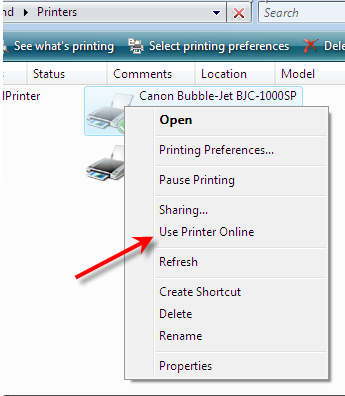 But, if you right-click in Windows 10 or 8.1, you will see a completely different menu as shown below,
Printer Offline in Windows 10 or 8.1? How to make it online.
Follow the step by step instructions below :
Step1 : Go to control panel or look for printer options.
In Windows 10, you can search for devices and printers by entering ‘devices’ as shown below and click on the ‘Devices and Printers’. It doesn’t matter whether you have USB, network, or wireless printer or any brands such as HP, Brother Epson, the following methods are same to bring back the printer online in Windows 10/8.1.
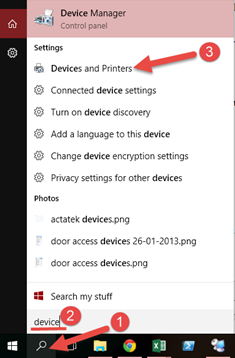
Step 2 : Click on Devices and Printers in Large or Small icons view of the control panel.

Step 3 : Now you will see the offline printer (slightly faded). Right-click on it and select ‘See what’s printing’.
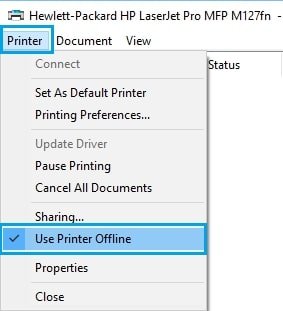
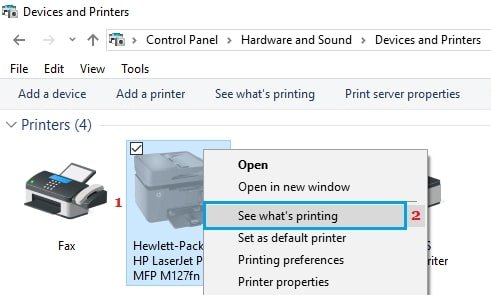 If the printer is in an offline state, you would see the check mark in front of ‘Use Printer Offline’. Remove the check mark and wait for some time for the printer to come online and resume printing.
If the above steps did fix the problem, keep troubleshooting further as shown in steps below.
Why still my Printer Offline? How to make printer back online
4) If it is a Network Shared Printer:
If a network printer still shows offline message, then you need to check the network settings of the computer where it is attached (if it’s a shared network printer for you). The following settings need to be checked on the computer which is sharing the printer.
- Click File and Printer sharing settings
- Make sure the Network Discovery is turned on and Network sharing services are running
- Check the firewall or anti- virus program, if it is blocking the printer. These programs might be blocking the incoming connection to the shared printer.
5) Restart The Spooler Service
Sometimes this method helps in bringing back the offline printer to online in Windows 8.1 and 10. Instead of restarting the computer, you can stop and start the print spooler service (which is one of the Windows services).
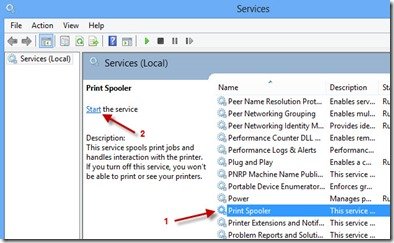 Another method is through the command prompt
Open the command prompt and run as administrator and type:
Net stop spooler
and
Net start spooler
This will stop and start the print spooler services which will clear some of the printer related issues.
Few Extra Steps to Troubleshoot Printer Issues on Windows 10
1) Check the Printer’s power cable
Sometimes we miss out simple things. Make sure that printer is powered on and there are no warning lights blinking – that confirms the printer doesn’t have any hardware issues. Even doing the power cycle of the printer is advisable in this case. Either turn off and on from the power button or remove the power cable from the back and connect back in.
2) Check for physical printer
Most of the printers have orange light which indicates some hardware issues. Few common hardware issues are; paper jam, carriage jam or improper placement of cartridges or cartridges dried out, top, rear or any other covers not fixed properly and out of paper.
Solve all physical printer warnings to bring a printer online.
3) Check the connectivity
If it’s connected with the USB cable, check the connection at both the ends (computer and printer sides). You can unplug from both ends and connect back properly again, try to connect the same USB port on the computer. If it doesn’t work, try the different USB ports.
For network printers, find out the IP address and check the connectivity by pinging. Follow these steps to find out the IP address of a printer in Windows OS.
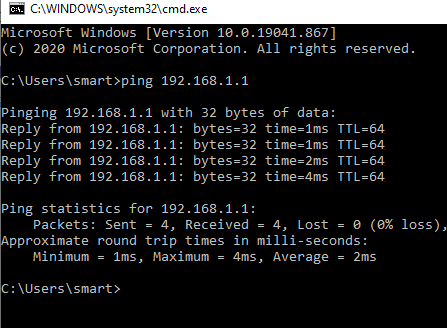 If the printer is connected through a shared computer, you can check the connectivity by accessing the Windows network sharing. Find out the name or IP address of the shared computer where the printer is connected, enter the name or IP with \\ in the Run box or Windows explorer. Something like below;
\\192.168.200.251
4) Use the Printer Software
As we have been trying these all methods in Windows built-in tools, and if still, the printer is offline, you can try the printer software which came with the Printer driver or download it from the website. Mostly once you install your HP, Canon, Epson or any other printers the first time, it would have installed the printer management software also.
Open the printer software and check for any warning messages it detected about the printer. These software work better with the printer as it was developed by the vendor for a specific printer model.
If there is a way to make a printer online from the offline state by the printer software, why should not we give a try? You can also follow the Printer setup guide here
5) Check the Printer Driver and Install Again
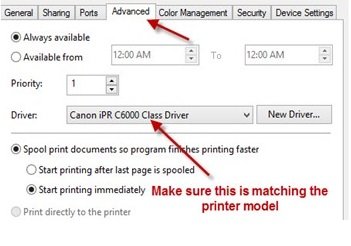
The printer driver and software should have been installed properly by installation CD provided or downloaded. If you have to download, do download the correct or similar model driver from the official site. Installing or assigning a completely wrong printer driver will cause the issue in printing and Operating System as well.
Accidentally or automatically a wrong driver could have been assigned to a printer you are trying to print. Double check the model of the printer with the installed driver on your computer.
Also, the System Restore and Windows OS recovery may damage the printer driver files sometimes. If you have done these activities recently, it is better to uninstall and reinstall it again to solve the issue.
6) Clear the Old Pending Jobs
Sometimes the old pending print jobs will block new print jobs. These old jobs should be cleared manually to print new jobs.
Go to Devices and Printers in the control panel and double click the printer where pending jobs need to be cleared. It will list out the old jobs with ‘Error’ state. Right-click and Cancel them.
If the pending jobs not getting cleared by the above method, then you need to restart the print spooler service as mentioned earlier or restart the computer.
I hope this guide is useful to fix printer offline issue and how to get back a printer online in Windows 10 and 8.1/Windows 7. This should solve the problem mostly if your printer is not having any major hardware or network communication problem.