

Unlock Your HP Envy 5000’s Full Potential: Expert Tips and Troubleshooting Help
Are you looking to unlock the full potential of your HP Envy 5000 printer help? Look no further! In this article, we will provide you with expert tips and troubleshooting help to ensure that you can get the most out of your device.
Whether you’re an individual or a small business owner, the HP Envy 5000 help offers a range of features that can greatly enhance your printing experience. From wireless connectivity to high-quality prints, this printer is designed to make your life easier.
Our expert tips will guide you through the setup process, demonstrating how to maximize the printer’s performance and versatility. We’ll cover everything from optimizing print settings to using advanced scanning features.
In addition to tips, we’ll also address common troubleshooting issues that you may encounter while using your HP Envy 5000. From paper jams to connectivity problems, we’ll provide step-by-step instructions to help you resolve any issues quickly and efficiently.
So, if you’re ready to unlock the full potential of your HP Envy 5000 printer, keep reading for expert tips and troubleshooting help. Let’s dive in!
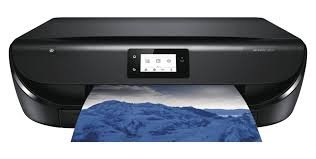
Understanding the features and capabilities of the HP Envy 5000
The HP Envy 5000 is a versatile and feature-rich printer that can elevate your printing experience. One of its standout capabilities is its wireless connectivity, which allows you to print directly from your smartphone, tablet, or laptop without the need for a physical connection. This wireless printing feature is particularly useful for small businesses or home offices where mobility and flexibility are essential.
Another key feature of the HP Envy 5000 is its multi-function capabilities. In addition to printing, this printer can also scan and copy documents, making it a valuable all-in-one solution for your office needs. The scanner boasts a high resolution, ensuring that your scanned documents are clear and detailed, while the copying function allows you to quickly and easily make duplicates of important papers.
The HP Envy 5000 also offers a range of print quality options, allowing you to choose between high-quality, photo-realistic prints or faster, more economical prints for everyday documents. This flexibility ensures that you can tailor your printing experience to your specific needs, whether you’re printing important business documents or creating vibrant, professional-looking photos.
Common issues and troubleshooting tips for the HP Envy 5000 help
While the HP Envy 5000 is a reliable and well-designed printer, like any electronic device, it may occasionally encounter issues that require troubleshooting. One of the most common problems users face is paper jams, which can occur for a variety of reasons, such as using the wrong type of paper or feeding the paper incorrectly.
To address a paper jam, first, turn off the printer and gently remove any visible paper from the paper path. If the jam is not easily accessible, consult the printer’s user manual for step-by-step instructions on how to safely clear the jam. It’s important to be gentle and avoid using excessive force, as this can damage the printer’s internal components.
Another common issue with the HP Envy 5000 offline is connectivity problems, where the printer is unable to connect to your wireless network or computer. This can be caused by a variety of factors, such as outdated drivers, network configuration issues, or even interference from other wireless devices. To troubleshoot connectivity problems, start by checking your network settings and ensuring that the printer is properly configured. You may also need to update the printer’s firmware or drivers to ensure compatibility with your system.
How to set up and connect your HP Envy 5000
Setting up and connecting your HP Envy 5000 printer is a straightforward process that can be completed in just a few simple steps. Begin by unpacking the printer and removing all the protective packaging and materials. Next, locate a suitable location for the printer, ensuring that it is placed on a stable, level surface and has adequate clearance for paper feeding and output.
Once the printer is in its desired location, plug in the power cord and turn on the device. The printer will then guide you through the initial setup process, which may include connecting the printer to your wireless network or computer. If you choose to connect the printer wirelessly, follow the on-screen instructions to enter your network credentials and establish a secure connection.
If you prefer a wired connection, simply use the included USB cable to connect the printer directly to your computer. The printer should then be recognized by your operating system, and you can proceed to install the necessary drivers and software. Be sure to download the latest drivers from the HP website to ensure optimal performance and compatibility with your system.
Maximizing print quality with the HP Envy 5000
One of the key advantages of the HP Envy 5000 is its ability to produce high-quality prints, whether you’re printing documents, photos, or graphics. To ensure that you’re getting the best possible output, it’s important to optimize your print settings and use the appropriate paper type.
When it comes to print settings, the HP Envy 5000 offers a range of options, including resolution, ink type, and paper size. For everyday documents, you can typically use the default settings, which will provide a good balance of quality and speed. However, for more important or high-quality prints, such as photos or presentations, you may want to consider increasing the resolution and using a glossy or photo paper to achieve the best results.
In addition to adjusting the print settings, it’s also important to maintain the printer’s ink cartridges and ensure that they are properly installed and functioning. Over time, the ink cartridges may need to be replaced, and using genuine HP ink cartridges can help to ensure consistent, high-quality prints. By taking these steps, you can unlock the full potential of your HP Envy 5000 and produce professional-looking results every time.
Tips for efficient printing with the HP Envy 5000
The HP Envy 5000 is designed to be a highly efficient and productive printer, and there are several tips and tricks you can use to get the most out of it. One of the key ways to improve efficiency is to take advantage of the printer’s automatic duplex printing feature, which allows you to print on both sides of the paper without manually flipping it.
Another way to optimize your printing efficiency is to use the HP Envy 5000’s mobile printing capabilities. By connecting the printer to your smartphone or tablet, you can easily send documents and photos to the printer from anywhere, saving you time and hassle. This feature is particularly useful for small business owners or remote workers who need to print on the go.
In addition to these features, the HP Envy 5000 also offers a range of advanced print settings that can help you save time and resources. For example, you can choose to print in draft mode for everyday documents, which uses less ink and produces faster prints, or you can select the “Fast” setting for quick, high-quality prints when you’re in a hurry. By exploring these settings and features, you can tailor your printing experience to your specific needs and maximize the efficiency of your HP Envy 5000.
Exploring advanced features of the HP Envy 5000
While the HP Envy 5000 help is primarily known for its printing capabilities, it also offers a range of advanced features that can enhance your overall productivity and efficiency. One of the most notable of these features is the printer’s scanning capabilities, which allow you to digitize documents and images with high accuracy and clarity.
The HP Envy 5000’s scanning function is particularly useful for small business owners or home office users who need to regularly manage and organize important documents. By scanning documents directly to your computer or cloud storage, you can easily create digital backups, share files with colleagues, and reduce the amount of physical paperwork you need to store.
Another advanced feature of the HP Envy 5000 printer is its ability to connect with a variety of cloud-based services, such as Google Drive, Dropbox, and Microsoft OneDrive. This integration allows you to print directly from these cloud storage platforms, making it easier to access and share your files on the go. Additionally, the HP Envy 5000 can be integrated with various productivity apps and software, enabling you to streamline your workflow and boost your overall efficiency.
How to perform regular maintenance on your HP Envy 5000
To ensure that your HP Envy 5000 printer continues to operate at its best, it’s important to perform regular maintenance and cleaning. One of the most important maintenance tasks is to keep the printer’s ink cartridges in good condition. This involves regularly checking the ink levels and replacing cartridges when they run low or become empty.
In addition to monitoring the ink cartridges, it’s also important to clean the printer’s print head periodically. Over time, the print head can become clogged with dried ink or other debris, which can negatively impact print quality. To clean the print head, you can use the built-in cleaning function in the printer’s software or follow the instructions in the user manual.
Another important maintenance task is to keep the printer’s exterior clean and free of dust and debris. This can be done by gently wiping down the printer’s surfaces with a soft, dry cloth. It’s also a good idea to check the paper feed and output trays for any jammed or crumpled paper, and to clear any obstructions to ensure smooth, uninterrupted printing.
Additional resources and support for the HP Envy 5000
If you ever encounter any issues or have questions about your HP Envy 5000 printer, there are a variety of resources and support options available to help you. One of the first places to start is the HP website, which offers a wealth of information, including user guides, troubleshooting tips, and software downloads.
In addition to the online resources, HP also provides excellent customer support, with a team of knowledgeable technicians available to assist you with any questions or problems you may have. Whether you need help with setting up your printer, troubleshooting a technical issue, or ordering replacement parts, the HP support team is there to help.
If you prefer a more hands-on approach, you can also find a wealth of user-generated content online, such as forum posts, tutorials, and video guides. These resources can be particularly helpful for tackling more complex issues or exploring the advanced features of the HP Envy 5000. By taking advantage of these various support options, you can ensure that you get the most out of your printer and keep it running at its best for years to come.
Conclusion: Unleash the full potential of your HP Envy 5000 printer
In conclusion, the HP Envy 5000 is a powerful and versatile printer that offers a wide range of features and capabilities to enhance your printing experience. Whether you’re an individual user or a small business owner, this printer can help you unlock new levels of productivity and efficiency.
By understanding the features and capabilities of the HP Envy 5000, troubleshooting common issues, and optimizing your printing settings, you can ensure that you’re getting the most out of your printer. Additionally, by exploring the advanced features and performing regular maintenance, you can unlock even more of the printer’s potential and take your printing to new heights.
Remember, the HP Envy 5000 is a powerful tool that can help you streamline your workflow, improve your productivity, and achieve professional-quality results. So, why not take the time to explore all that this printer has to offer and unlock its full potential today? With the right tips and guidance, you’ll be well on your way to enjoying a seamless and efficient printing experience with your HP Envy 5000.