

How to Fix HP Printer in Error State
There could be various reasons for printer to go in error state. Has your printer stopped working suddenly after switching to Windows 10, or Getting Printer in Error State, being unable to print documents or being unable to connect to the printer while trying to use it? The printing job has stopped; here are some effective solutions for fixing printer problems on windows 10 or Mac operating system and getting it to work again.
HP Printer in error state problem on windows 10
Usually this error appears when the printer is jammed, paper or ink low, the cover is opened, printer output tray is closed or the printer is not properly connected, etc.
If you are trying to find some useful solutions to this problem, then you can try any of these methods which are shown below. They can help you fix your printer in error state issue.
Possible Reasons for why your HP Printer is in Error State
When you try to print some documents or pictures out of it, and you’ll get to know that your HP printer stopped suddenly. You’ll get a window popping up saying the HP printer in error state. This is a mistake that prevents your printer from responding to the print commands. A disconnected USB cable or an operating system issue would be the main reason behind this problem. The problem could also be caused by wireless, USB, Bluetooth and wired connection methods and even driver problems sometimes. If you’ve been looking for some effective solutions to this problem then try the solutions listed below. The following solutions will certainly help you fix your HP printer in the error state.
Methods to Fix HP Printer in Error State Windows 10
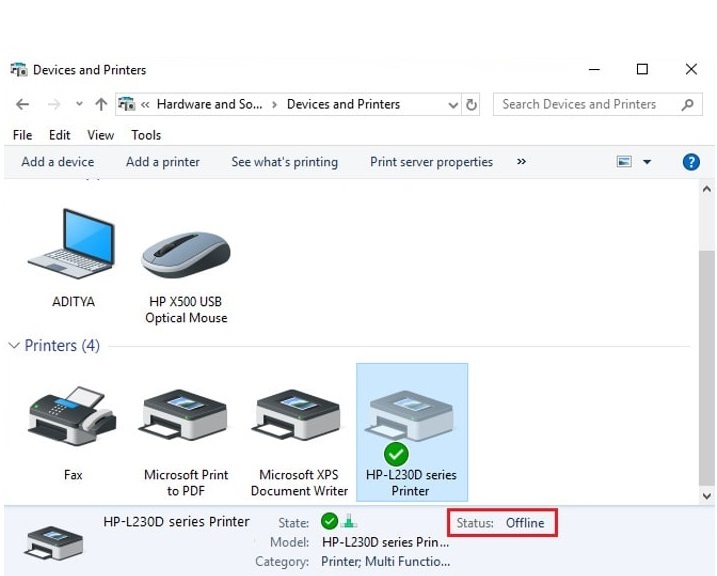
Before troubleshooting, know some of the reasons for the HP printer Error State
- BIOS issue is a common factor for harboring the error in printers
- Malware or another virus attack
- If the printer driver gets corrupted
- Lack of high-speed internet connectivity is highly responsible.
- The wires and USBs may not be properly placed in your printer.
Steps that you can follow to fix the HP Printer in Error
Luckily, if you have latest upgraded to Windows 10 or updated to the latest version of Windows 10 or any other update on win 10. So it is possible that your printer’s status might appear “Printer in an error state” error notification. With this Printer error, you won’t be able to print anything.
Every time, we face such as Printer Error State problems in Windows 10, we normally go for uninstalling and reinstalling printer drivers and in generally, it helps us in getting rid of printer problems like Printer in error state Windows 10.
Whenever, if you are looking for Printer in error state Windows 10 solution then you need to have a look at the below-detailed techniques of how to fix printer in error state in Windows 10?
Step 1:- Run Troubleshooter in windows operating system
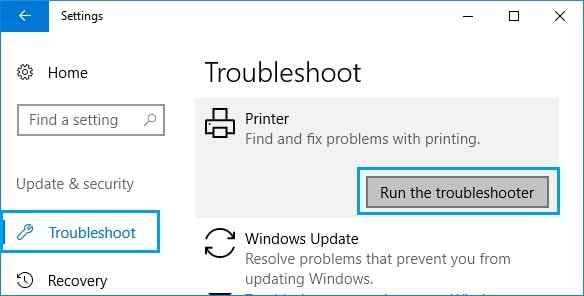
It is recommended to run a printer troubleshooter if you are unable to print or connect to your HP Printer in Windows 10. Please follow the below steps to troubleshoot printer and fix problems.
- Make sure your printer is plugged into the power supply and turned on. Check the USB connection (for wired printers) or the wireless connection (for wireless printers).
- If none of the above steps work, run the printing troubleshooter. Right click on the printer icon and click on troubleshoot and follow the instructions.
- If you are still having problems, then your printer may need a new driver. Right-click (or press and hold) the “Start” button, and then select “Device Manager”. Then “Expand Printers” and find your printer in the list, right-click (or press and hold) it, then choose “Update Driver” option.
Step 2:- Check Wi-Fi or Cable connection
After the above steps, still, if your printer’s status displays “Printer in error state,” there may be a problem with the printer itself.
Make sure the printer is turned on and connected to your PC by Wi-Fi or cable. Check it for low paper or ink, and be sure the cover isn’t open and the paper isn’t jammed.
Let’s check and Fix the HP Printer Offline?
While printing if you the error message on the printer or the computer that says printer offline then the best fix is to restart your computer as well as printer. If it still won’t get fixed then follow the instruction given below.
Step 3:- Uncheck “Use Printer Offline” Option
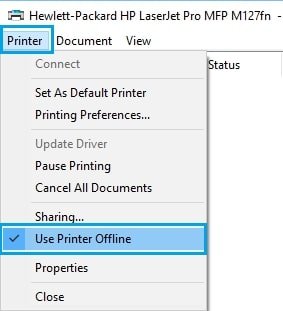 Although, the printer is ON but still it says Offline, then follow the instruction given below to make it Online.
- Click on the start button on the bottom left, then go to “Control Panel” and then click on “Devices and printers”.
- Then click on the selected “Printer”.
- If the “Printer is offline”, then it shows “Offline Message” status. Check the Printer is online it shows “Ready”.
- Then right-click on the printer and then choose “Use Printer Online”.
- Then display should change to ready when the printer is set to online.
Step 4: Try to Re-install the printer driver
- Go to the Control Panel.
- Click on Devices and Printers
- Right-click on your printer and select Remove device
- Confirm the device removal and restart your computer
- After the computer reboots, it should automatically detect and install your printer, if not, unplug it and plug it back again.
Steps 5: Check the print spooler service
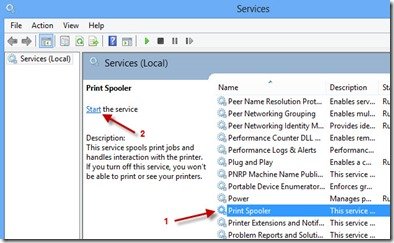 Press the Windows logo key + R on your keyboard > type services.msc in the Run box and press Enter
- Search for the Print Spooler service in the right panel and first make sure that it is set to Start
- Right-click on Print Spooler and select Proprieties
- In the General tab, set Startup type to Automatic from the drop-down menu > click Apply > OK
- Close the Services window and restart your computer to see if it fixed the issue.
Steps 6: Check if the papers are loaded properly
It is important to check whether the paper is loaded in the printer tray. Before doing this, you have to make sure that the printer is turned off. Now, turn on your printer and wait for a minute until your HP printer is in the ready state. Now check for the error.
If HP printer in error state problem still exists in your HP printer, then don’t wag-off! If your HP printer not printing, contact HP support for more help from experts. You only need to call and get associated with them hassle-freely. They will proffer you exact solution of this query.
Steps 7: Check for Update Windows
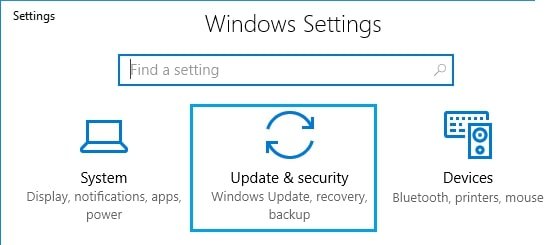 Press the Start button and open Settings
Click Update & Security
- Select Windows Update
- Click Check for updates
- If it finds any updates, let it complete the process and restart your computer
- After rebooting your PC, check if updating Windows fixed the issue.
We hope that our solutions helped you fix this printer issue. If not, you can follow the steps below or click here
Alternative methods to Fix HP Printer in Error State
Solution 1:
Check the Printer’s Connection and Try Restarting the Device
You can perform some simple methods once your printer is in an error state and see if they work.
90% of the time this seems to be a small glitch which gets fixed by rebooting your devices.
Make sure that your devices are properly connected to each other, and there is no problem with the network (wireless or Bluetooth) or cable you are using for the connection.
The problem can sometimes be solved by restarting your devices. You can completely switch off your computer and printer and leave it for a few minutes. Turn them on after that and see if the mistake is gone.
Solution 2:
Check Your HP Printer is Online or Offline mode
- Click on Start button and select Control Panel
- Choose ‘Devices and Printers’ option
- Check if the printer is offline or online. If it is online, the status will show as ‘Ready’
- Set the printer online by right clicking on Printer and then choose the option saying ‘Use Printer Online’.
- This will change the display to ready
Solution 3:
Check is the Print Spooler service is running
Follow the steps below to change the Print spooler service.
- Press Windows +R, Type services.msc and press enter.
- Scroll down and double click on service called print spooler.
- Here make sure the services are Started and set to Automatic.
- If not then change the startup type automatic and start the service next to service status.
- Then move to Recovery tab and change the first failure to “Restart the service“.
- Click on apply and check printer back online and it’s on working state.
Solution 4:
Clear print spooler files
Clear spooler files and restarting the spooler service are also be helpful in solving most printer associated issues. To do this, right-click and prevent the print spooler service to open the windows services again.
- Navigate to C:\Windows\System32\Spool\Printers and delete all data inside the printer folder.
- Again open following path C:\Windows\System32\Spool\Drivers\w32x86 and delete all data inside the folder.
- Restart the spooler service and check printer working.
Solution 5:
To Remove/Uninstall the printer
- Disconnect your printer’s USB cable from your PC.
- Press Windows + R, you will see the run box opened, type devmgmt.msc and click OK to open Device manager.
- Here expand Printers and Scanners, Right click on the installed printer driver and select uninstall device.
- When warning pop-up will appear “You are about to uninstall this device from your system“. Checkmark on delete the driver software for this device and click on Uninstall button to proceed.
- Once the printer drivers are uninstalled, restart your system.
Solution 6:
Install or add a wireless printer
Open Settings > Devices > Printers and Scanners. Select Add a printer or scanner. Wait for it to find nearby printers, choose the one you want, and then select Add device.
If your printer is on and connected to the network, Windows should find it easily. Available printers can include all printers on a network, such as Bluetooth and wireless printers or printers that are plugged into another computer and shared on the network. You might need permission to install some printers.
Solution 7 :
Install or add a local printer
If you want to connect to a local printer, simply plug the USB cable from your printer into an available USB port on your PC, and then turn on the printer.
Now open settings -> Devices > Printers and Scanners -> Add a printer or scanner. Wait for it to find available printers, choose the one you want, and then select Add device. If ask for any driver select the driver path (previously downloaded from manufacturer website).
First, make sure that the printer is correctly plugged into the power supply. You have to turn on your printer. Try to check for wireless or USB connection.
Run troubleshooter printer if this does not solve the problem; you may need a brand new driver from your printer.
Solution 8:
Update or re-install printer driver
HP Printer in error state can also result from faulty or incompatible printer driver. To solve such issues, we need to un-install the corrupted or faulty printer driver which may also lead to printer errors, in this case you need to either re-install or update your printer driver. You will need to update or reinstall the driver.
- Download correct printer drivers
- Check for virus infections or power issues
- Restart Both Computer and Printer
- Close all ongoing printing tasks and turn off your printer
- Abort all ongoing print jobs in the queue
- Restart your device and power up your printer and see whether the problem is resolved.
Solution 8 :
Check if Your Printer is Online or not
Hp printer in error state is a problem that can also be caused if your printer is offline. The steps that you need to follow in order to get your HP printer online include:
Click Option Start and select Panel Control
Next, choose Devices and Printers option
Check if the HP printer is offline. If your printer is online, the status will show as Ready.
Set the printer online by right clicking on Printer and choosing the option that says Use Printer Online.
Hopefully, the above steps help you to fix your issue.
In case you have any issue, then contact at HP support assistant to connect with skilled technicians for immediate help.